A business email with your own domain is an address like info@yourbusiness.com instead of yourbusiness123@gmail.com. To get one, you need three things: a domain you own, a mailbox service (from your hosting company, Google Workspace or Microsoft 365), and a few settings that point your email to that service. The work takes an afternoon at most, most options charge a small monthly fee per mailbox, and your business looks established from the very first message.
I am Hasan, a web and app developer in Riyadh. I will explain every technical word the first time it appears, because you should be able to make this decision without a developer in the room. If you do not yet own a domain, start with choosing a domain name, because your email address will end with it.
Key takeaways
- A business email ends with your own domain, such as info@yourbusiness.com. It looks more established than a free address and stays with the business, not with one person.
- Email and your website are separate services. You can host them at different companies.
- You have three common ways to get it: email included in your hosting plan, Google Workspace, or Microsoft 365.
- The key setting is the MX record. Change it carefully, and write down your old settings first.
- Set up SPF, DKIM and DMARC so your messages reach the inbox and nobody can easily pretend to be you.
- Register the domain and the email admin account in your own name and with your own details.
Why a free Gmail address costs you trust
Let me be fair first. Many good small businesses use a free Gmail address, and it works. But think about it from your customer’s side. A quote, an invoice or a first reply arrives from a personal address. Some people will not care. Others will quietly wonder whether you are a real, settled business, especially when they are about to pay a deposit.
An address on your own domain answers that question before it is asked. It also carries your website name into every message you send, so each email works as a small advertisement for your business. And it belongs to the business: if a staff member leaves, you keep the info@ or sales@ address and simply give it to someone else.
Free personal address
- yourbusiness123@gmail.com
- Free and quick to create.
- Tied to one person’s account.
- Looks like a personal inbox.
Address on your domain
- info@yourbusiness.com
- Usually a small monthly fee per mailbox.
- Belongs to the business, and you can add staff.
- Matches your website and your card.
How business email works, in plain words
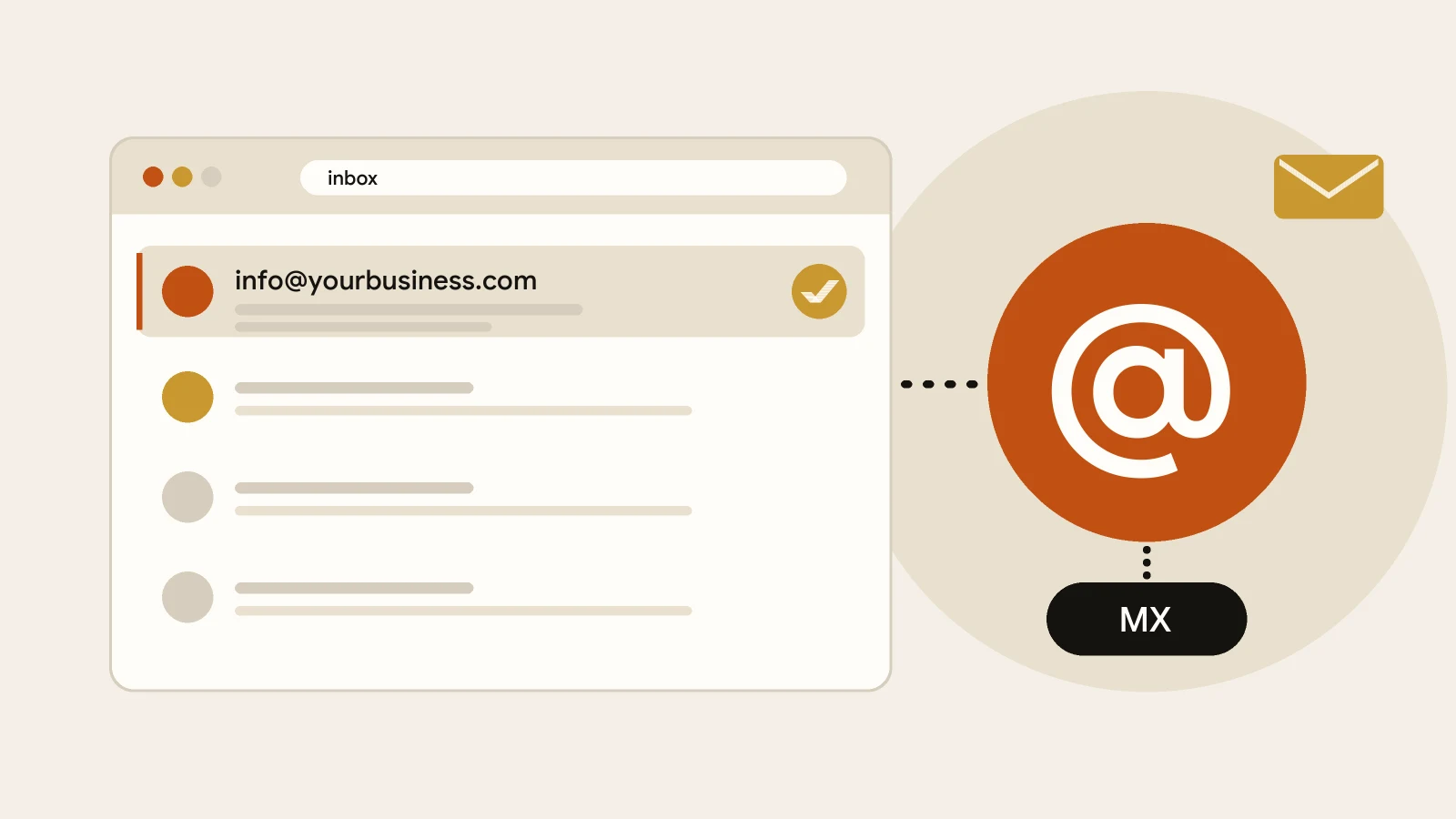
Three pieces work together. Your domain is your internet address, like hasanwebs.com. A mailbox is the inbox where your messages are stored and read. And an MX record is one line in your domain’s settings that tells the internet which company receives email for your domain. When someone writes to info@yourbusiness.com, the MX record is what sends their message to the right mailbox.
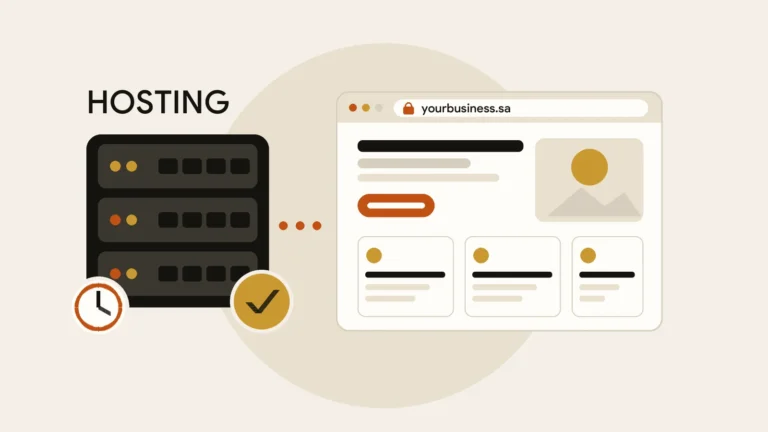
The settings for your domain are kept in what is called DNS. Think of it as the contact card of your domain: it says where the website lives, where the email goes, and which services may act on your behalf. The important part for you is that your email and your website are separate. The website can sit with one company and the email with another. I explain this split in domain, hosting and website explained in plain words.
Three ways to get a business email
Most small businesses choose one of these three. The right one depends on how many people need an address, what tools your team already uses, and how much you want to manage yourself.
| Option | Good for | Watch out for |
|---|
| Email from your hosting plan | One to a few addresses on a tight budget | Quality and sending limits vary by hosting company. If you change host, your email may have to move too. |
| Google Workspace | Teams that like the Gmail inbox, a shared calendar and online documents | Paid per user, so costs grow with your team. Check the current price on Google’s site. |
| Microsoft 365 | Businesses that already use Outlook, Word and Excel, or work with clients who do | Paid per user. Plans differ, so read what each one includes before you pay. |
I do not quote prices here because they change, depend on the plan and are charged per user. Check each provider’s own pricing page on the day you buy.
Tip
In my experience, if you need three or fewer addresses and mostly read mail on your phone, a hosting-plan mailbox is enough to start. If you have a team, share a calendar or send quotes every day, a Google or Microsoft plan is usually less trouble in the long run.
How to set it up, step by step
The exact buttons differ between providers, but the order is almost always the same. Read the list first, then follow your provider’s own instructions for each step.
- Check that the domain is in your nameLog in to the registrar account yourself. If you cannot, fix that first. See who owns your website.
- Choose the service and create your accountUse your own email and details for the admin account, not your developer’s.
- Create the mailboxes firstAdd every person or role that needs an address, before you change anything in DNS.
- Prove you own the domainThe provider asks you to add a short TXT record, which is a line of text in your DNS. Some registrars can do this automatically.
- Point the MX record to the new serviceFrom this moment, email for your domain goes to the new mailboxes.
- Add SPF, DKIM and DMARCThese protect your reputation. The next section explains them.
- Test from outsideSend a message to and from a friend’s account, check the spam folder, and set up the mailbox on your phone.
Microsoft’s own guide makes two useful points. First, it says to add your users and set up their mailboxes before you add the MX record, so that no mail is interrupted. Second, some registrars support an automatic option called Domain Connect, which verifies your ownership and adds the required records for you. If yours does not, you add them by hand at your registrar.
Common mistake
Changing DNS settings without writing down the old ones. Microsoft warns that wrong DNS records can cause email and service outages. Before you touch anything, take a screenshot of every record. If you are not comfortable, ask someone to do this step with you.
SPF, DKIM and DMARC: why your emails reach the inbox
These three names sound technical, but each one has a simple job. According to Google’s documentation, SPF lets your domain list which servers are allowed to send mail for it. DKIM adds a digital signature so the message cannot be quietly changed on its way. DMARC lets you decide what receivers should do with messages that fail those checks.
Google also says that all senders to Gmail must set up SPF or DKIM, and it recommends both. Senders who send more than 5,000 messages a day must set up all three. A small business sends far fewer than that, but setting up all three takes little time and makes it much harder for someone to send fake emails in your name. It also helps your real messages avoid the spam folder.
A business email only belongs to you if the domain and the admin account both belong to you.
One more point for website owners. If the contact form on your website sends its notifications to your business address and they land in spam, tell your developer. Correct SPF and DKIM records are often part of the fix.
Choosing the addresses themselves
A few simple choices make your email look organised and easier to manage.
- Use a general address such as info@ or hello@ for the public, and one or two role addresses such as sales@ or support@ if you need them.
- Give yourself a personal address with your name, so people who know you can reach you directly.
- Keep addresses short and easy to spell on a phone call or a voice message.
- Use one spelling of your brand everywhere. This matters a lot when your name has several English spellings.
- Put the same address on your website, your Google Business Profile, your invoices and your signature.
- Forward role addresses to the people who actually answer them, so nothing sits unread.
Common problems and what to do
| Problem | Likely cause | What to do |
|---|
| Mail stops arriving after the change | The MX record is wrong or has not finished updating | Check the record against your provider’s instructions and wait. Changes can take from minutes to a few hours, sometimes longer. |
| Your messages go to spam | SPF, DKIM or DMARC is missing or wrong | Add or correct the three records, then test again. |
| Email stopped after moving the website | The new host replaced your DNS and removed the MX record | Restore the old MX record. Always back up DNS before moving. |
| You cannot log in as admin | The account was created by a developer or former staff member | Recover access through the registrar, and move the admin to your own details. |
Most of these problems come from one source: nobody in the business knows where the email lives. Write down which company hosts your domain, which one hosts your website, which one hosts your email, and who holds each login. Keep that note somewhere safe.
If you would like help setting up a business email and connecting it to your website properly, you are welcome to contact me and I will tell you honestly what you need. You may also want to read how to start a website for your business, which shows where email fits in the whole picture.
References

 Business Websites
 Business Websites
 Business Websites